How to Enable Guest Surveys through the GRUBBRR Enterprise Console
Last updated: August 8, 2026
My client wants to offer customer surveys through their Kiosk. How do we activate the feature? What kind of surveys can we offer?
Clients using version 14.8+ of GRUBBRR's Kiosk software can, if desired, add customer satisfaction surveys to receipts from the Kiosk. Digital receipts (Email, text message) will include a direct link to the survey, while physical receipts will include a QR code that customers can scan to access the survey page.
For our initial beta release, this feature will be enabled on the Organization settings page, and will allow customers to rate their satisfaction with the menu items on their order. Additional survey types are planned for future releases.
To enable customer surveys from the Kiosk, follow the steps outlined below.
Go to gcc.grubbrr.com
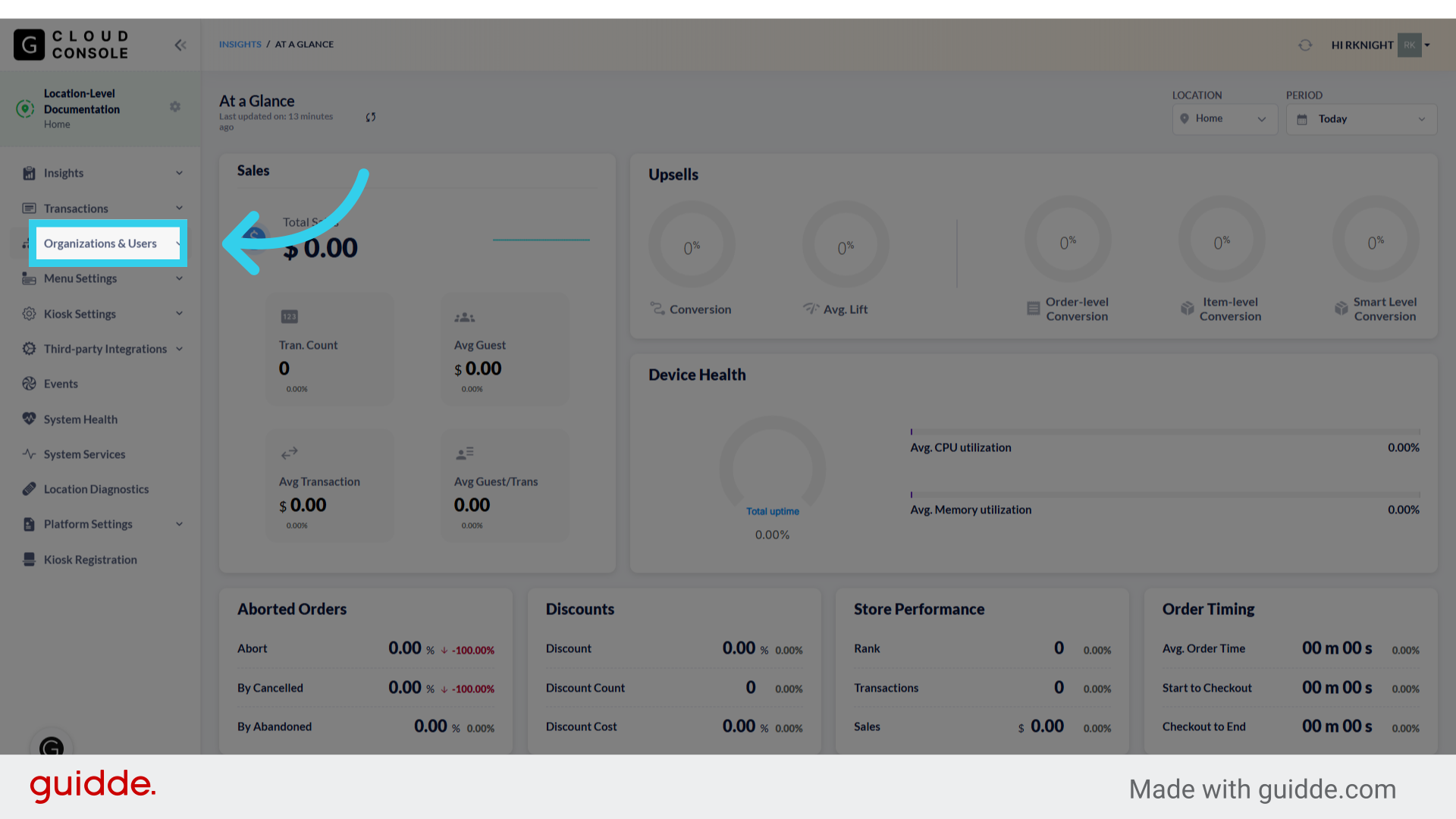
1. Click "Organizations & Users"
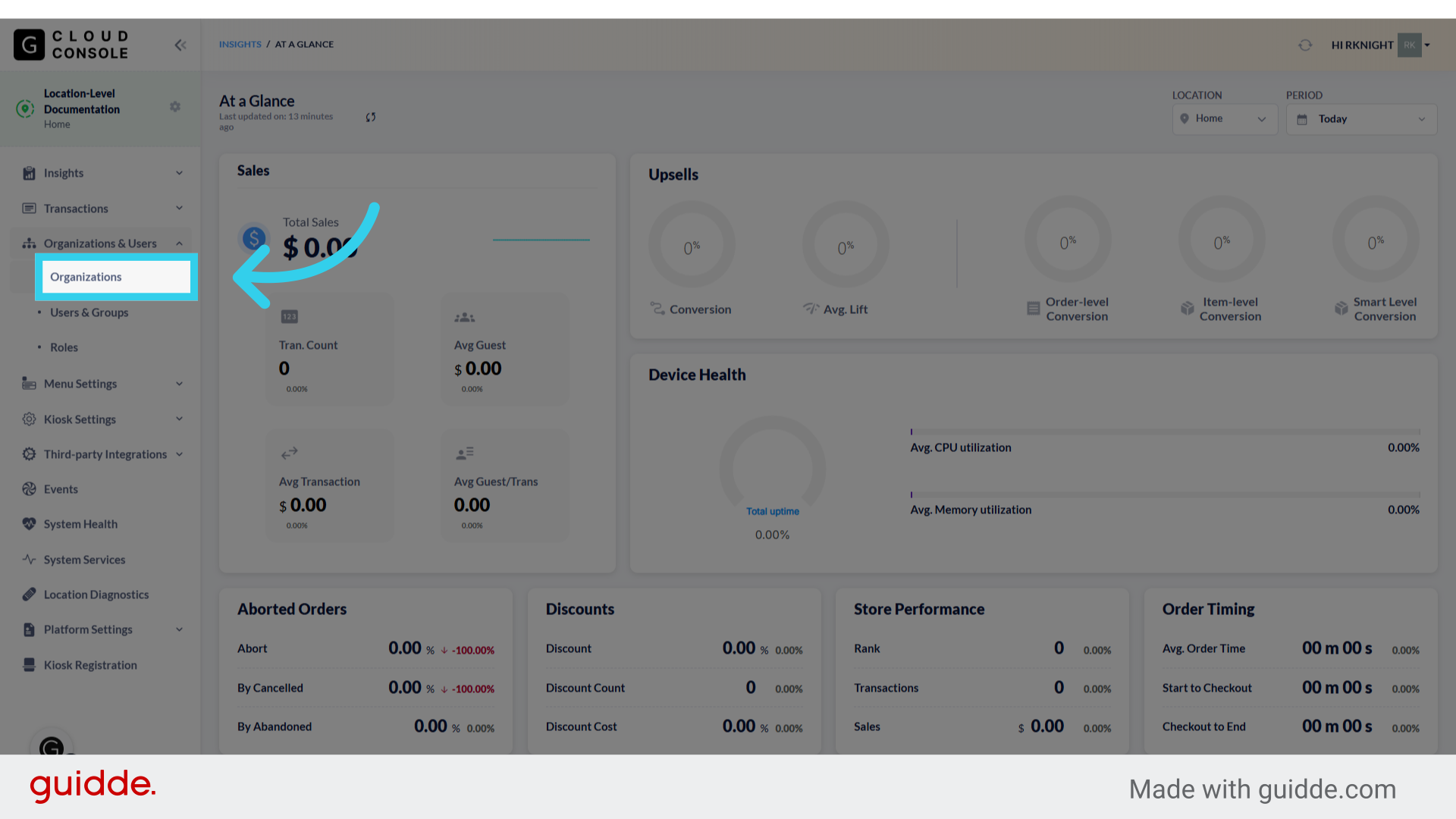
2. Click "Organizations"
3. Use the search function to find the organization you want to update

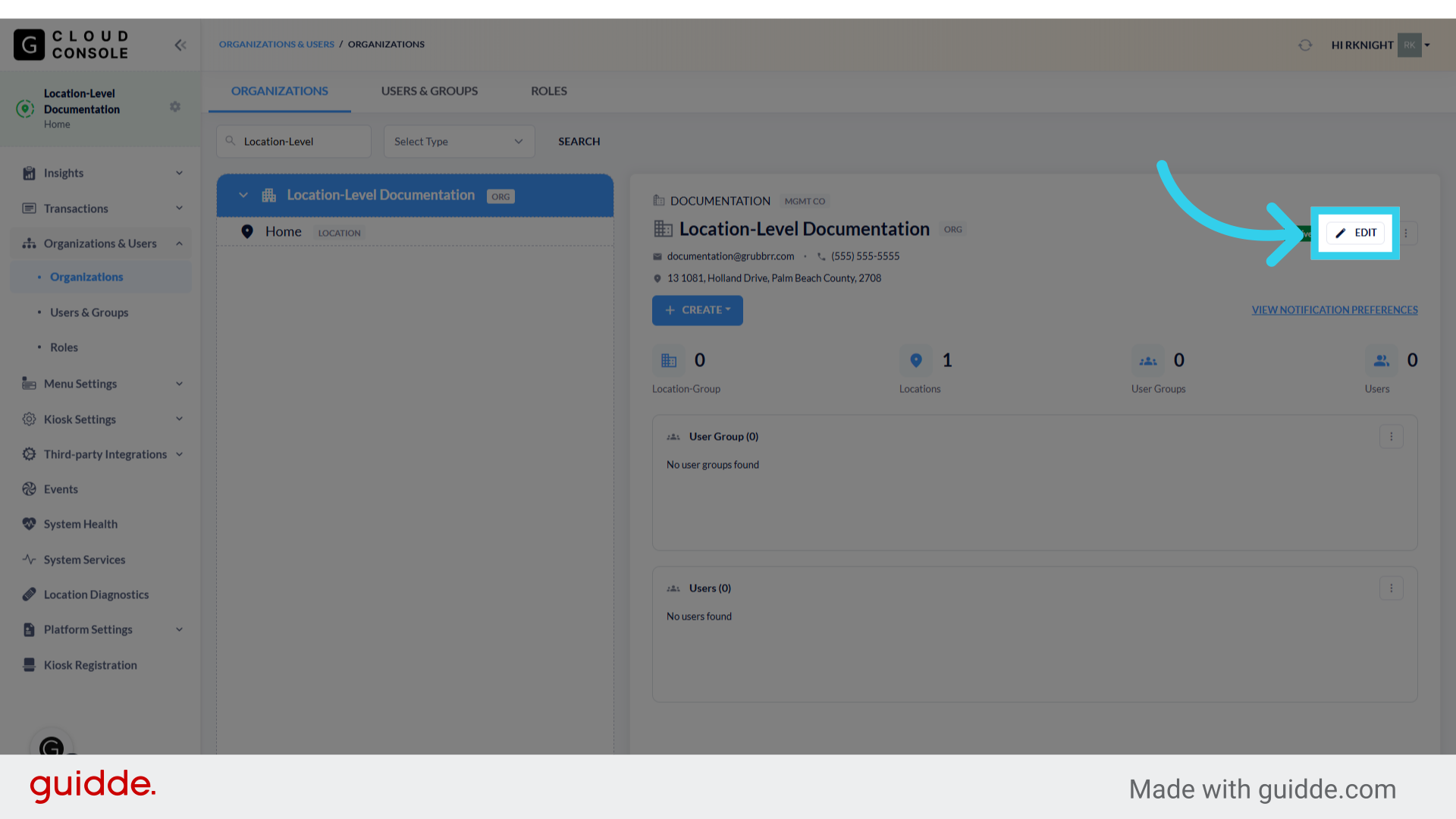
4. Click "EDIT"
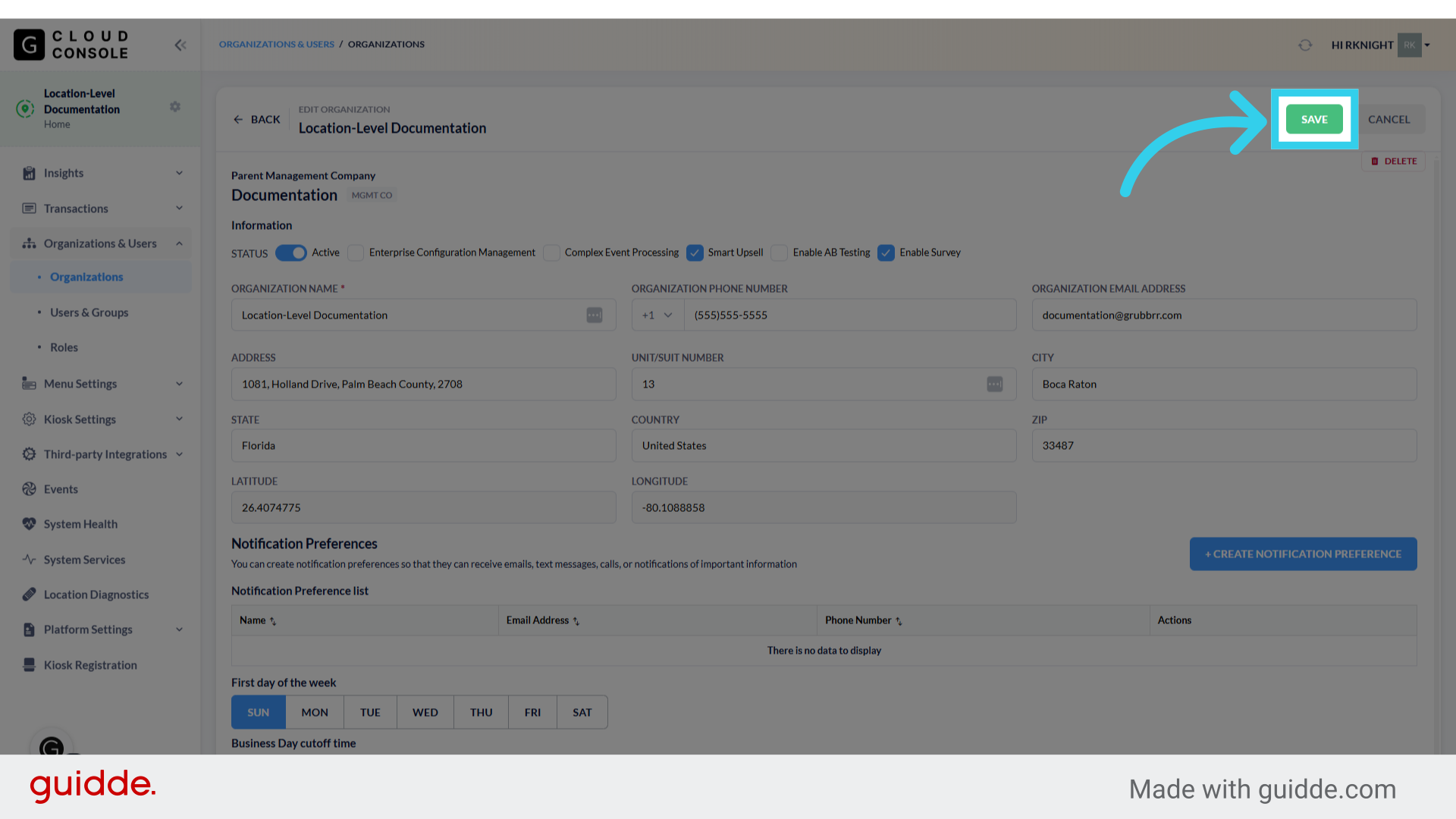
5. Click "Enable Survey"

6. Click "Save"
Customizing Surveys in the Console
1. Click "Customer Surveys"

2. Click "Add New"

3. Give your Survey a recognizable Name

4. Enter the Survey Question here
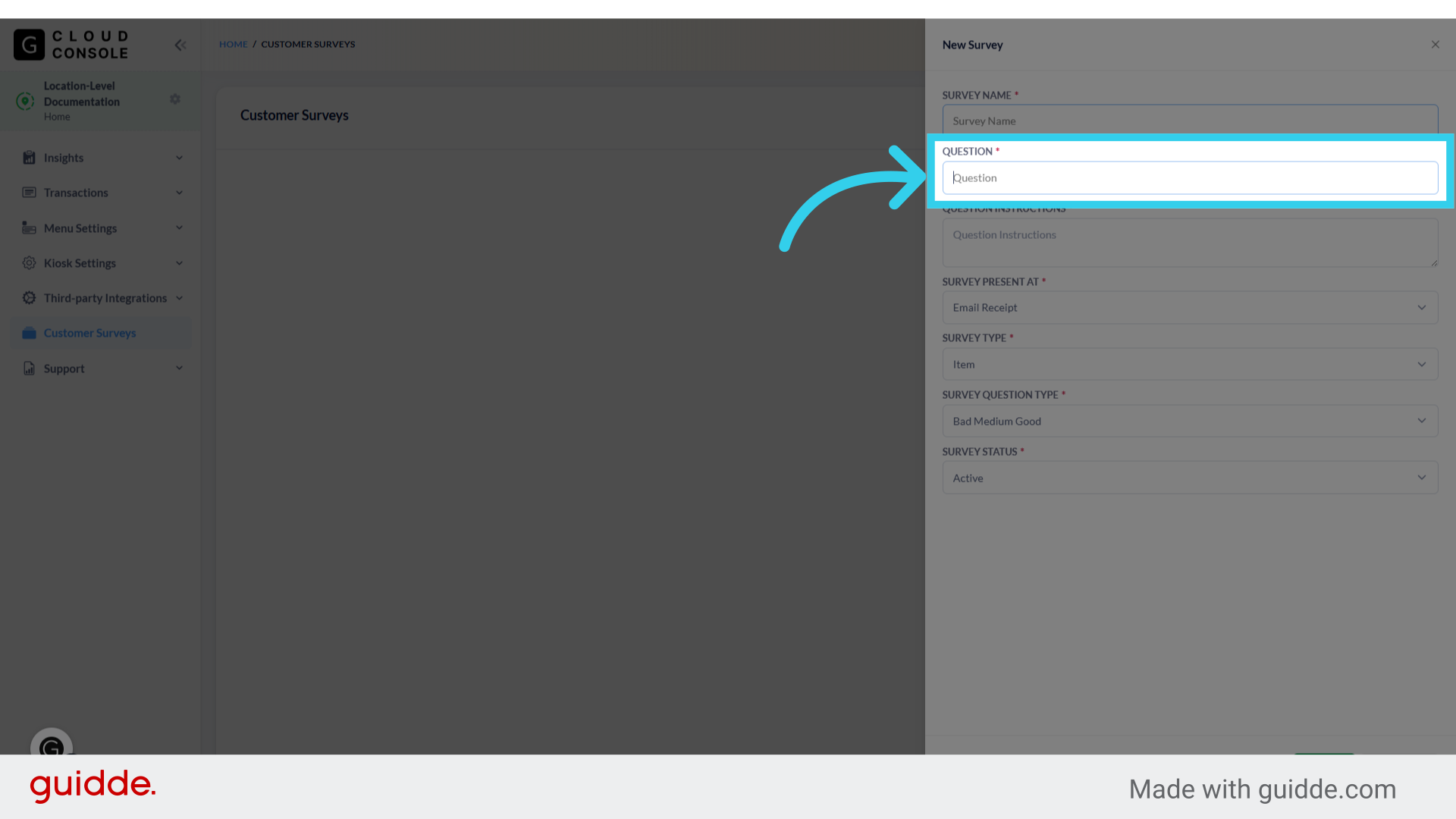
5. Enter basic instructions for completing your survey here
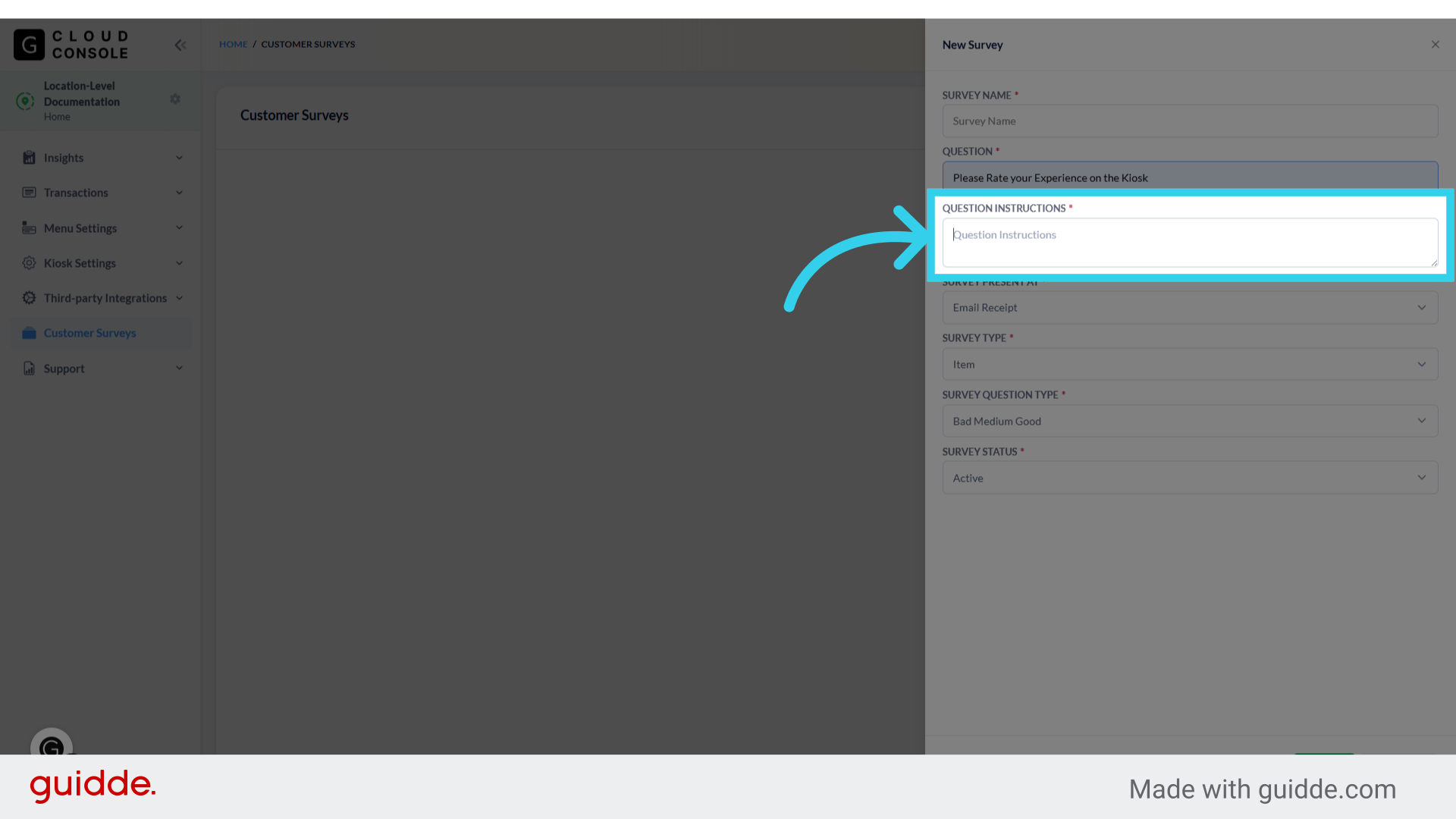
6. Choose whether the Survey will be presented on the Kiosk or on the Customer's emailed receipt
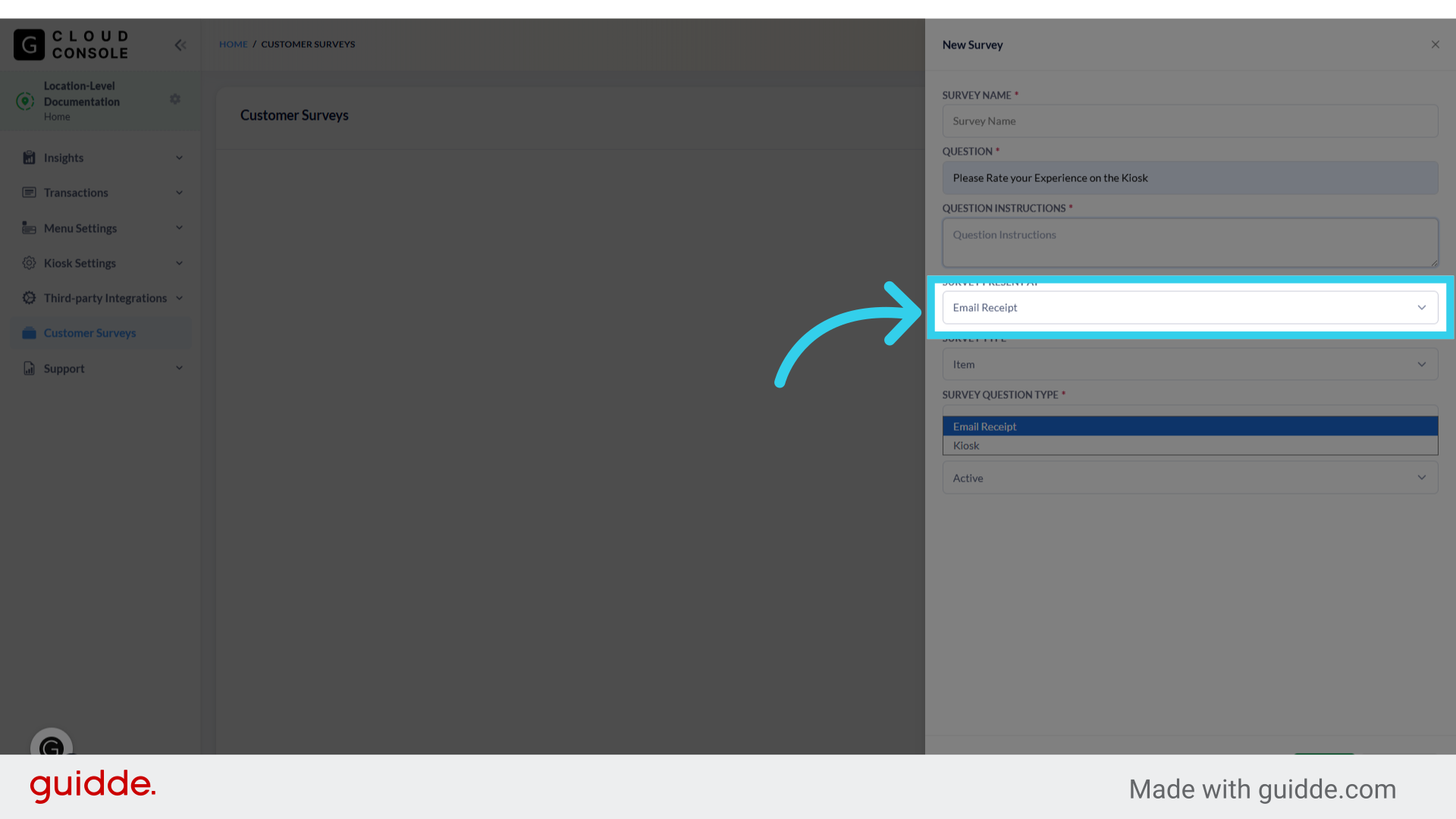
7. Define whether the Survey relates to items in the user's cart, or to their ordering experience

8. As of this now, all surveys are based on a three-point scale
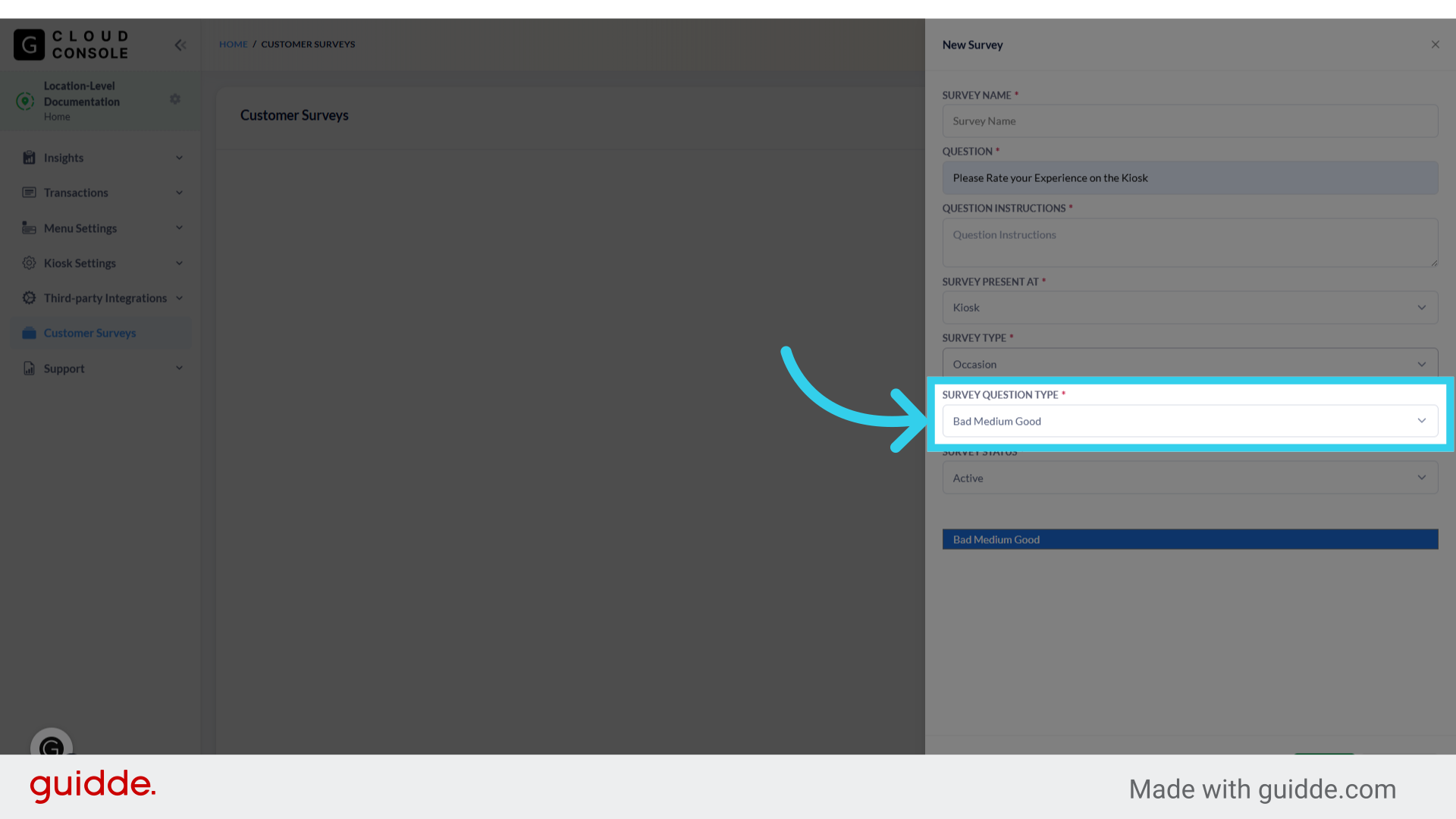
9. You can Activate, Deactivate or Archive your survey here

10. Click "Save" to apply your changes

11. Remember to sync changes to your Kiosk when you're done
